How to get your Shopify products into ChatGPT through Business Hub
November 23, 2026 · 7 min read
Short answer first. Shopify stores reach ChatGPT two ways. You can connect the store natively inside Business Hub and let OpenAI pull the catalog, or you can link a hosted feed that gets validated and rebuilt daily. Both routes end at the same eleven feed rules, and OpenAI drops rows that break them without telling you. The route matters less than the data. This guide covers both, and the four places Shopify catalogs fail the spec.
Route one: the native Shopify connection
Claim your business in Business Hub first; the feed attaches to the claimed profile. Our claim walkthrough covers that half step by step, and the order is the same for Shopify. Then choose the Shopify connection instead of a file. OpenAI pulls your catalog from the store, and you never touch a CSV.
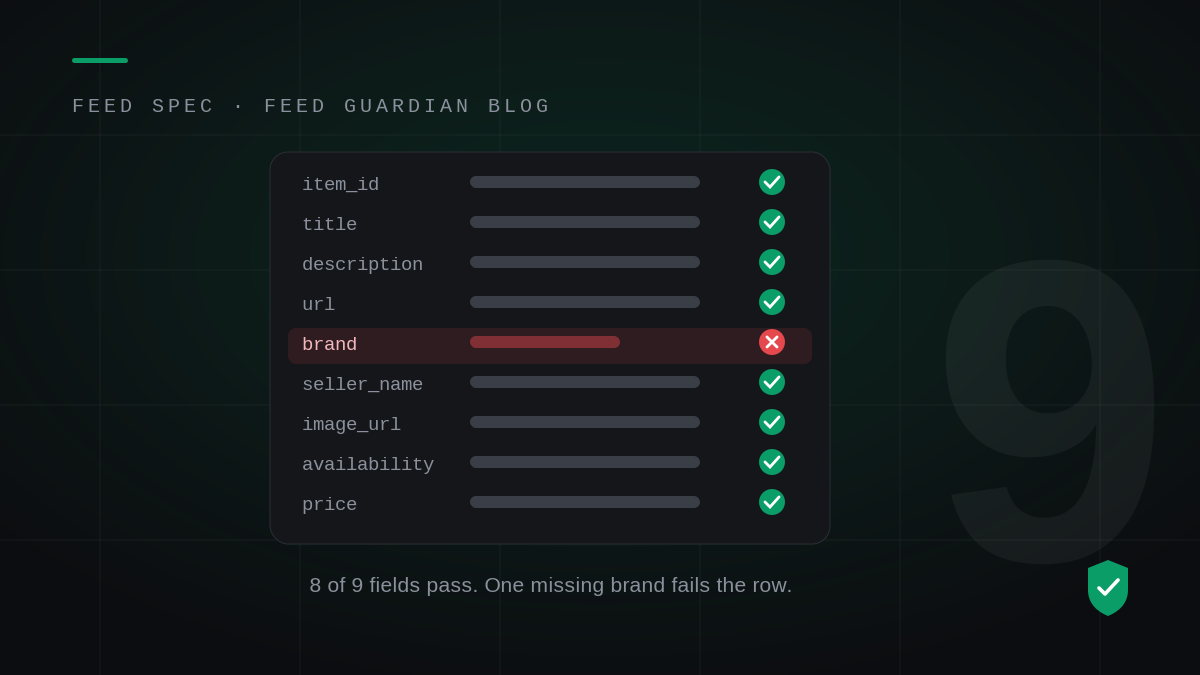
What the native route does not do is forgive bad data. OpenAI validates every row it pulls against the feed spec: eleven required fields, the price in the exact format, availability from the allowed list. A row that fails is dropped in silence, exactly as it is for an uploaded file. The connection removes file handling. It does not remove the rules.
Route two: a hosted, validated feed
The second route links a hosted feed URL in the same Business Hub slot. The difference is what happens before OpenAI sees the rows: the catalog is checked against the spec first, the store-level gaps get filled once, and the file rebuilds daily with an alert when a row breaks. That guard layer is what Feed Guardian adds, and it reads a Shopify store two ways. The free feed check reads your public catalog file, no key and no install. A connected store hands over a custom app token with read-only product access, and the guard pulls the full catalog, variants included.
Where Shopify catalogs fail the spec
Descriptions. Shopify products carry long HTML descriptions, and variants often carry none. In the large store we scanned, all 416 failing rows failed on description alone. The spec wants a real description on every row, variants included.
Brand. Shopify's vendor field becomes the feed's brand. A store that leaves vendor inconsistent, or uses it for internal codes, sends a brand column that fails the consistency a shopper would expect.
Currency. Shopify's public catalog file lists amounts with no currency code attached. The feed needs one code, in the price format, on every row. A store selling in two currencies has to pick the feed's market and hold it.
Variant stock. Every variant is a row with its own price and availability. A sold-out variant still marked in_stock is drift, and drift is what gets a row dropped when OpenAI compares the feed against the store.
Images. A variant with no image of its own and no product image to inherit sends an empty image_url, and the row fails.
The daily rule does not care which route you picked
OpenAI expects a fresh full-catalog snapshot at least once a day and keeps the last processed record for up to 14 days. A native connection that stops syncing, or a hosted file that stops rebuilding, ages out on the same schedule. Our guide to why products disappear from ChatGPT walks that clock. Whichever route you choose, someone or something has to watch the sync after launch day. Launch day is the easy part.
Which route should you pick?
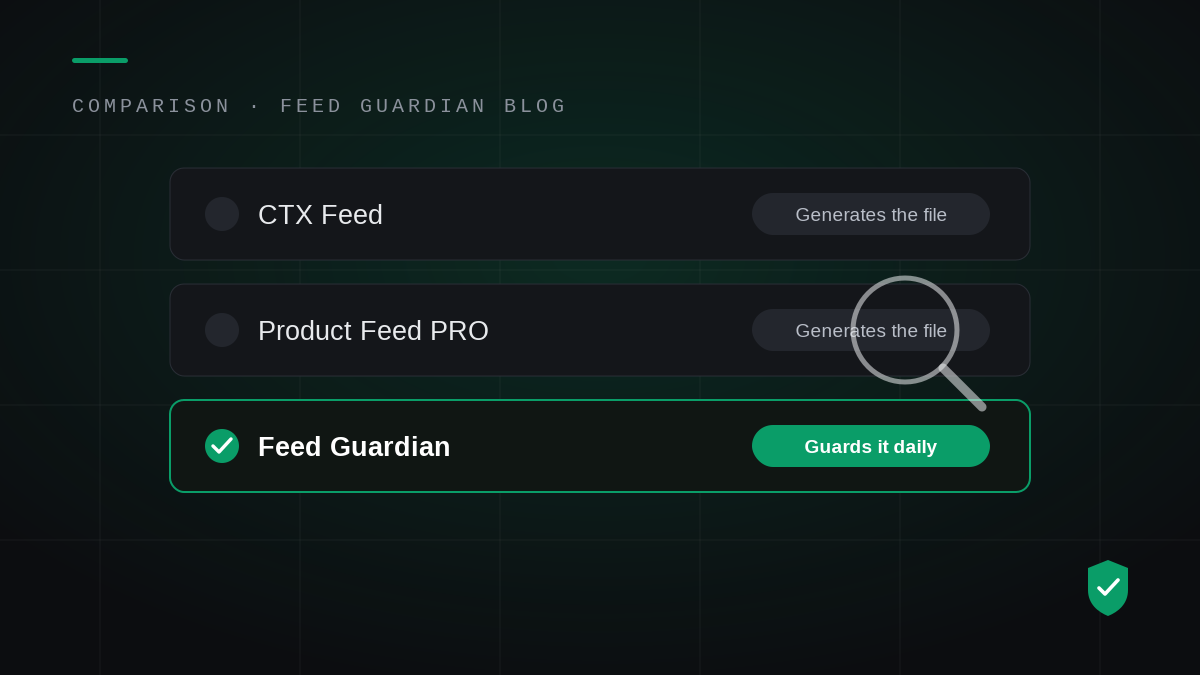
Pick the native connection if your catalog is small, your descriptions are complete down to the variant, and your prices and stock barely move. Pick the guarded feed if your catalog runs to hundreds of variants, you run sales, or you want the failure in your inbox instead of in your traffic graph. Honesty, as in our WooCommerce tools comparison: Feed Guardian launched in November 2026, and the native connection is OpenAI's own. You trade maturity for the monitoring layer, and the trade only pays when a silent drop would cost you real sales.
Questions store owners ask
Does Shopify connect to ChatGPT automatically? No. You claim the business in Business Hub and connect the store yourself. Nothing syncs before that, whatever your theme or apps promise.
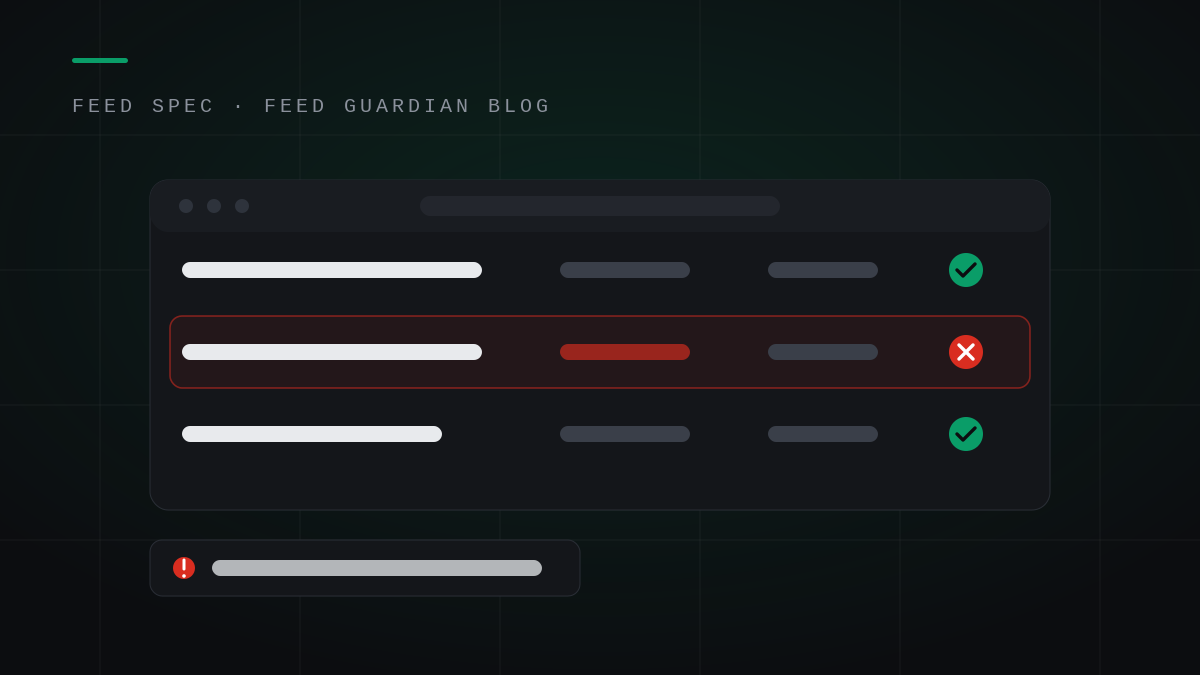
Can I check my Shopify store before connecting anything? Yes. The free Shopify feed check reads your public catalog, expands every variant into its row, and lists which rows would fail which rule. It needs no key and installs nothing.
Does Feed Guardian push products into ChatGPT for me? No, and no tool outside OpenAI's partner program can. Feed Guardian validates your catalog, hosts the feed at one stable link, rebuilds it daily and alerts you. You paste the link into Business Hub once, or keep the native connection and use the check as your watchdog.
Run the free Shopify check before you choose a route. Thirty seconds of public data tells you whether your catalog passes as it stands, and which rows to fix first.
Claim your business in ChatGPT Business Hub, then either connect the Shopify store natively or link a hosted feed URL. Both routes validate every row against OpenAI's eleven-field spec, and rows that fail are dropped silently.
Why do Shopify products fail the ChatGPT feed check?
Descriptions first. In one large store we scanned, 300 products became 3,639 variant rows and all 416 failures were missing descriptions. Vendor inconsistency, a missing currency code and variant stock drift fail rows after that.
Is every Shopify variant a separate row in the ChatGPT feed?
Yes. Each variant carries its own price, availability and image, so each one is a row that must pass the spec on its own. A 300-product store can be a 3,600-row feed.
Does Feed Guardian work with Shopify?
Yes. The free check reads your public Shopify catalog with no key. A connected store uses a custom app token with read-only product access, and the guard validates every row, hosts the feed at one stable link and rebuilds it daily.