The ChatGPT product feed CSV template, explained row by row
November 18, 2026 · 7 min read
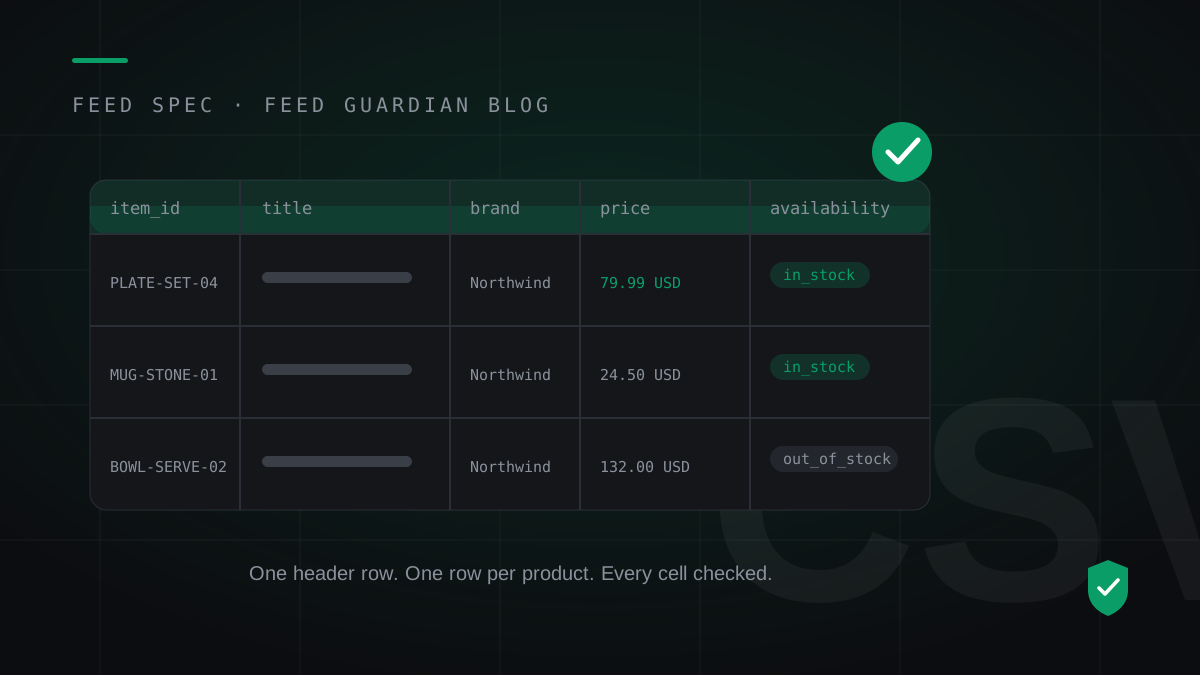
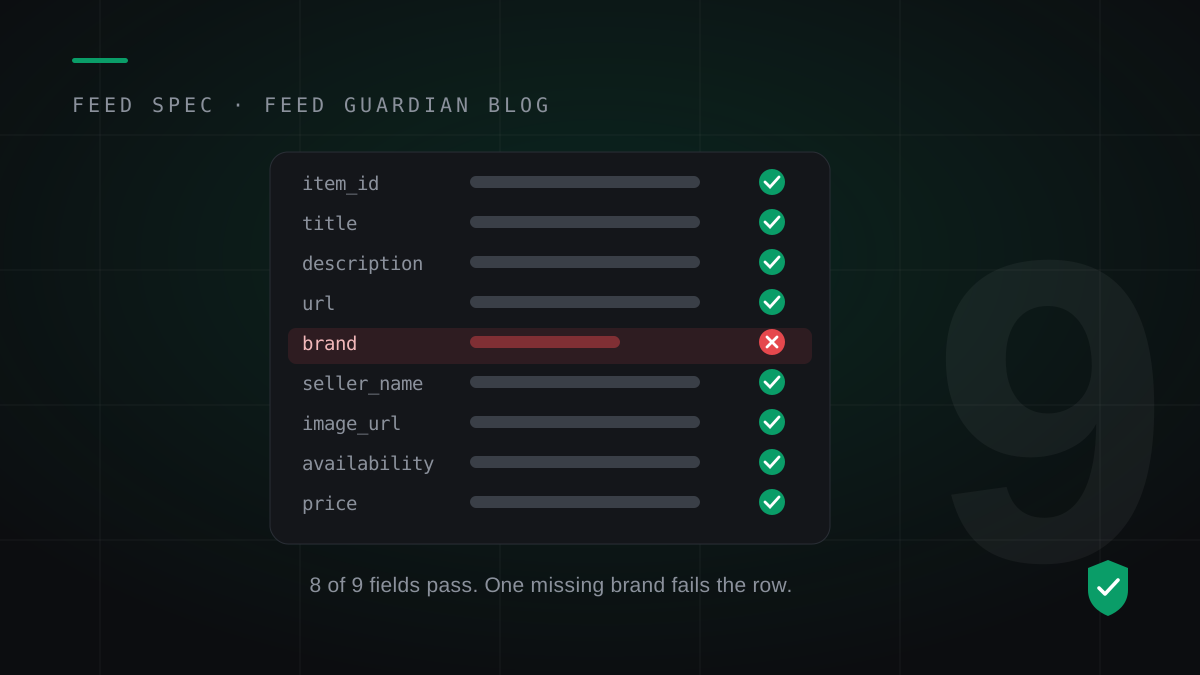
Short answer first. A ChatGPT product feed CSV holds one header row with nine required fields and one row per product underneath it. Most feeds fail on two cells: price, which must read like 79.99 USD, and brand, which most WooCommerce stores never filled in anywhere. This template shows the header, three worked rows from a sample ceramics store, and the rule each column enforces, so you can build the file by hand or check the one your plugin exports.
item_id
title
description
url
brand
seller_name
image_url
availability
price
PLATE-SET-04
Ceramic Dinner Plate Set of 4
Hand-glazed stoneware plates, 27 cm, dishwasher safe.
The first line of the file names the columns. Use the nine field names exactly as written in the table: item_id, title, description, url, brand, seller_name, image_url, availability and price. A renamed column is a missing column, and a missing column fails every row under it. Extra columns for conditional data, like sale_price or a group_id for variants, sit alongside the nine; the nine stay mandatory on every row. Our spec breakdown covers the conditional rules in full.
Mind the commas
A CSV file splits cells at commas, so any value that contains a comma needs double quotes around it. Look at row two in the table: the title 'Stoneware Mug, 350 ml' carries a comma, and the description in row one carries two. Exported raw, that comma shifts every cell after it one column over, and the price lands where availability belongs. Spreadsheet tools and decent exporters add the quotes for you. Hand-built files break here first. After you build the file, open it as plain text and check one comma-bearing row end to end before you upload anything.
Row by row: what each cell holds
item_id: the product's stable ID. Keep it identical in every snapshot. Change it and OpenAI reads the row as a new product and the old one as gone.
title: the product name a shopper recognises. Write the name you would put on the shelf tag, not a keyword string.
description: a real description of the product. Materials, size and use beat adjectives. A keyword list is not a description.
url: the product page on your store, publicly reachable. A link that lands on a category page or a login wall sends the shopper nowhere useful.
brand: the brand that made the product. This is the cell WooCommerce stores fail most, because WooCommerce has no standard brand field. Empty fails the row.
seller_name: your store's name, the same text on every row in the file. It should match the business name on your claimed Business Hub profile.
image_url: a public, absolute link to the product image, starting with https://. A relative path from your media library fails.
availability: one of in_stock, out_of_stock, pre_order, backorder or unknown. Nothing else. 'In Stock', 'yes' and 'available' all fail.
price: a plain number, a space, and the currency code, like 79.99 USD. No currency symbol, no thousand separators, no ranges, no 'from'.
Three rows, three lessons
Row one is the clean row. Every cell filled, price in spec format, availability from the allowed list. This row passes, and it passes every day as long as the data stays true.
Row two carries the same shape at a lower price, which is the point: the format does not change with the amount. 24.50 USD follows the same rule as 79.99 USD. Stores break this cell by exporting what shoppers see, symbols and commas included.
Row three teaches the snapshot lesson. The bowl is out of stock, and the row stays in the file with availability set to out_of_stock. Deleting the row instead removes the product from the snapshot. Marking it keeps the catalog complete and tells ChatGPT the truth: the product exists, and it cannot be bought today.
The formatting rules that reject rows
Price with a symbol or a comma: $1,299.00 fails. 1299.00 USD passes.
Availability in your own words: any value outside the five allowed ones fails the row.
A seller_name that changes spelling between rows. Pick one form and hold it across the file and across snapshots.
An image_url that needs your site's path in front of it. The link must work on its own.
An item_id your store reassigns. Export tools that renumber products between runs quietly reset every listing.
A description cell left empty because the product speaks for itself. It does not. Empty fails.
The snapshot rule behind the file
The file is a snapshot, not a newsletter. OpenAI expects the full catalog, every product, at least once a day, and retains the last processed record for up to 14 days. Upload this template once and your products carry an expiry date. Rebuild it daily and the listing renews itself. That rhythm, not the first upload, is what keeps a product in ChatGPT.
Upload the CSV or link a hosted file
Business Hub accepts a CSV upload and a hosted feed URL. The upload suits a first test: build the file, upload it, watch the rows. The hosted URL suits the daily rhythm, because the file at the link can refresh without you. Direct push into OpenAI belongs to approved partners only, so every self-serve store ends at one of these two doors. Whichever you pick, the file behind it has to follow the template above and arrive daily.
Questions store owners ask
Can I build this file in a spreadsheet? Yes. Keep the header names exact, save as CSV, and check the price column after saving. Spreadsheet tools love to reformat numbers, and a price that comes back as $79.99 fails.
What if a product has variants? Give each variant its own row with its own item_id, price and availability, and tie the rows together with a group_id. ChatGPT then shows one product with options.
Do out-of-stock products belong in the file? Yes, marked out_of_stock. The snapshot is the whole catalog. Removing rows removes products.
How often do I send it? At least daily, as a full snapshot. The 14-day retention window is a grace period, not a schedule.
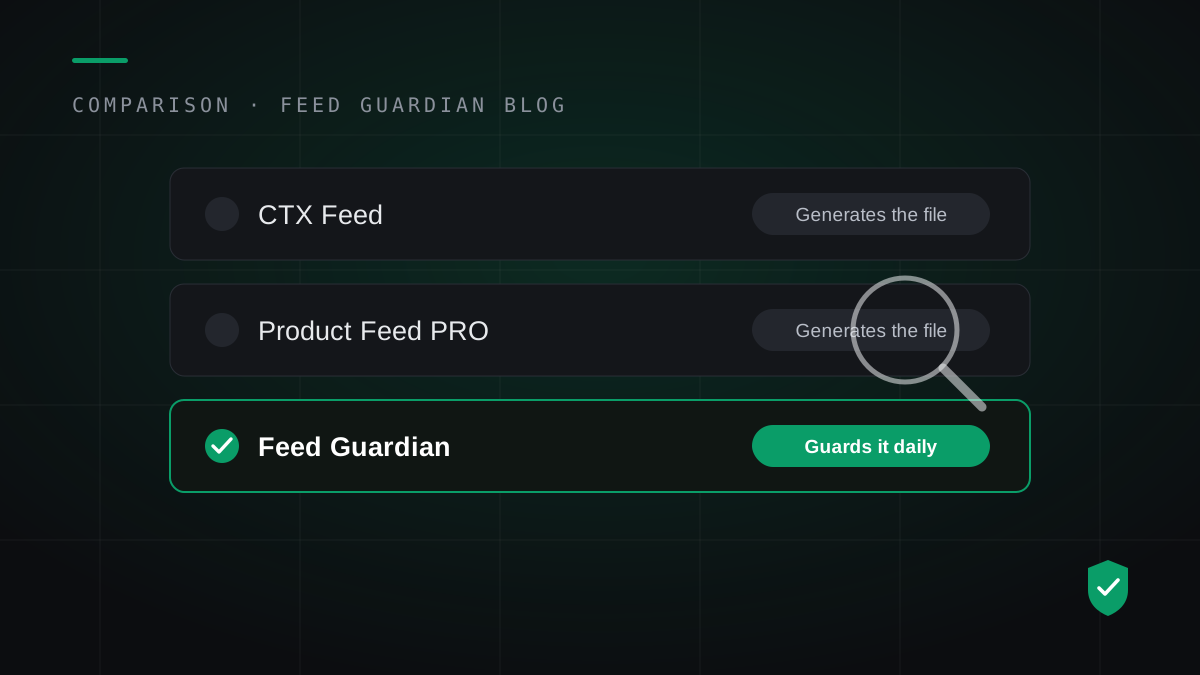
Build the file once with this template and you understand the spec better than most stores in ChatGPT today. Then decide honestly how the daily rebuild happens: a calendar reminder and a manual export, or a tool that validates every row and rebuilds the file for you.
Feed Guardian generates this exact file from your WooCommerce catalog, validates all nine fields on every row, hosts it at one stable link, and rebuilds it daily. The free feed check counts the rows your current data would fail.